Troubleshooting Login Issues
This guide explains how to identify and resolve the most common OSCAR Pro login issues. Most login problems fall into one of three categories:
- Password issues
- Locked accounts
- User role configuration
In many cases, a clinic Administrator can resolve the issue without contacting OSCAR Support.
How to Use
When a user is unable to log in, first determine which message or behaviour they are experiencing.
| If the user... | Go to |
|---|---|
| Forgot their password or sees the error "Authentication Failed" | Password Issues |
| Receives an account locked message | Locked Account |
| Unable to log in without error, or "User Not Validated" | Roles |
Password Issues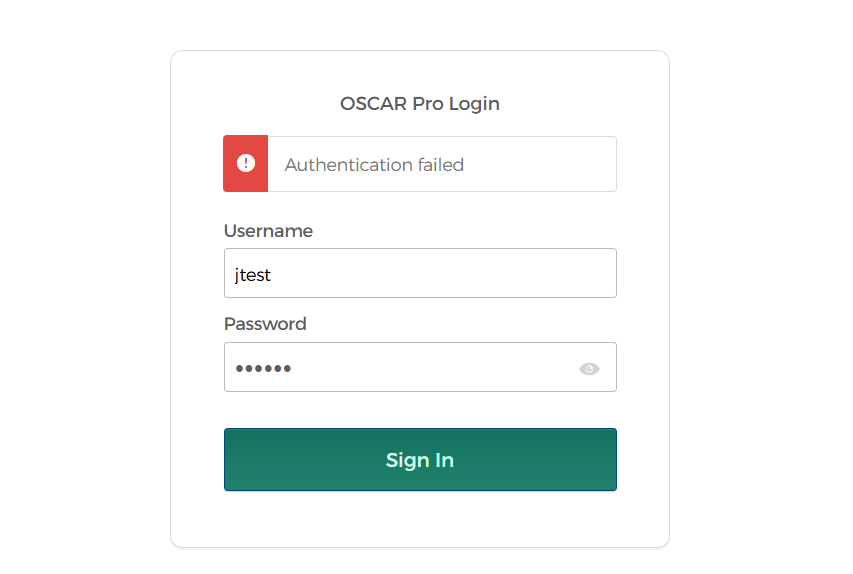
Password-related login issues are commonly caused by:
- Forgotten passwords.
- Passwords that do not meet OSCAR password requirements.
- Caps lock key is on, or other issue causing incorrect password entry
Password Requirements
Passwords must contain:
- Minimum 8 characters
- At least 1 uppercase letter, and 1 lowercase letter
- At least 1 number
- At least 1 symbol
Users
If you have forgotten your password, contact your clinic Administrator to have your password reset.
Select the Show Password icon (👁️) to display the password you have entered and verify it is correct before signing in.
Administrators
Ensure that the password you have created meets the minimum password requirements
Reset the user's password by following this guide:
How to Change a User's Password (Reset Password)
Locked Account
A user account becomes locked after too many unsuccessful login attempts.
Before unlocking the account, verify that the user is attempting to log into the correct OSCAR system.
Check you are logging into the correct OSCAR site
Using the correct username and password on the wrong OSCAR site will result in repeated login failures and lock you out from attempting further.
Compare the web address displayed in your browser with your clinic's unique OSCAR login URL.
The URL shown above is an example. Each OSCAR site has its own unique web address. If you are unsure which login page to use, contact your clinic administrator.
Automatic Unlock
Accounts automatically unlock after approximately 15 minutes.
The user may then attempt to log in again.
Administrator
If immediate access is required, an Administrator can unlock the account.
Our support team can not unlock users without authorization from the clinic's lead admin.
To unlock a user as an Administrator follow this guide:
How to Unlock a User in Pro Auth
If your clinic does not use Pro Auth, use the Unlock Account option available within the User Management admin menu.
Roles
If a user enters the correct username and password but is still unable to access OSCAR, their assigned roles should be reviewed.
This commonly occurs when:
- No role has been assigned to the user.
- The Doctor role has not been assigned.
- The Doctor role is not configured as the user's Primary Role.
Administrator
Review the user's assigned roles.
See: How To Add A New Provider Guide
Navigate to:
Administration > User Management > Assign Role to Provider
- Locate the provider.
- Ensure Doctor is assigned unless your clinic has been configured differently.
- Verify the Doctor role is marked Primary Role = Yes.
- A secondary role can be assigned as "Admin" if the user needs access to the Administration menu. (See provider 9 below)
Admin users can assign the primary role by scrolling to the bottom of the list, to the "Set Primary Role" setting.
Best Practice
Unless advised otherwise, users should have the Doctor role assigned as their primary role. Additional roles may be assigned based on the user's responsibilities.
The Admin role provides access to the Administration menus for system-wide configuration and user management and should only be assigned when appropriate.
Role configurations may differ between clinics. When unsure, compare the user's assigned roles with another provider who has the appropriate level of access.