OSCAR Pro Security Log Guide
What is the Security Log?
The Security Log is an audit report that tracks activity performed in OSCAR Pro. It records who accessed the system, when they accessed it, where they logged in from, and actions performed within patient records. This information helps clinics maintain privacy compliance and investigate security concerns.
The Security Log captures information such as:
- User login activity
- Automated system level activity
- Logout activity
- IP addresses used to access the system
- Patient chart access (read/view actions)
- Additions, edits, and updates of patient records
Potential unauthorized login attempts or suspicious activity
⚠️Performance Warning:
Running Security Log reports with large date ranges or without a specific demographic number may return a significant amount of data. Large searches can increase report generation time and may impact OSCAR system performance for all users.
To minimize performance impacts, use the narrowest date range possible and apply additional filters, such as Provider or Demographic Number, whenever appropriate.
Accessing the Security Log
Access to the Security Log Report is only available to users with the Admin role.
- Navigate to Administration.
- Open System Reports > Security Log Report
- Select:
- Provider/User
- Content Type
- Start Date
- End Date
- Click Run Report.
Understanding Content Types
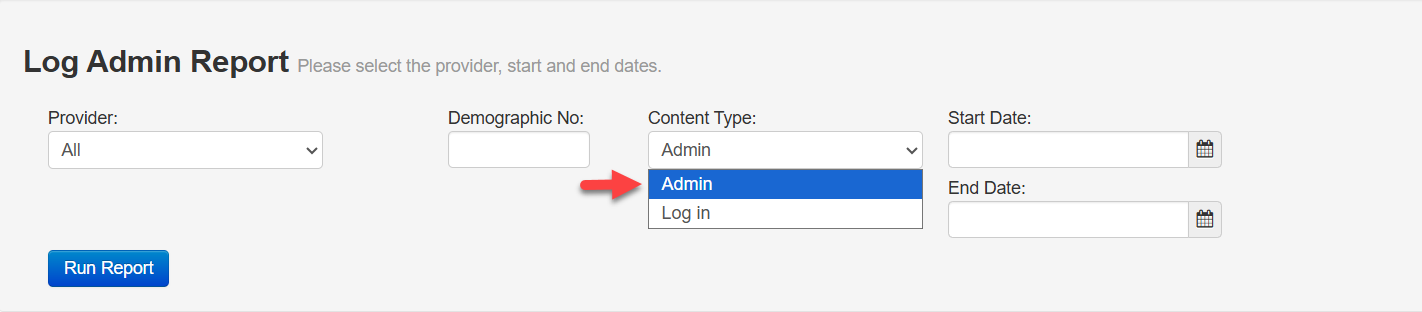
Log In
Displays login related activity, including:
- Login times
- IP addresses
- Authentication events
Use this report when you need to verify whether a user logged into OSCAR during a specific period.
Admin
Displays a more comprehensive activity report, including:
- Login activity
- Chart access
- Record creation
- Record updates
Using the Demographic field, provider selection and dates filters
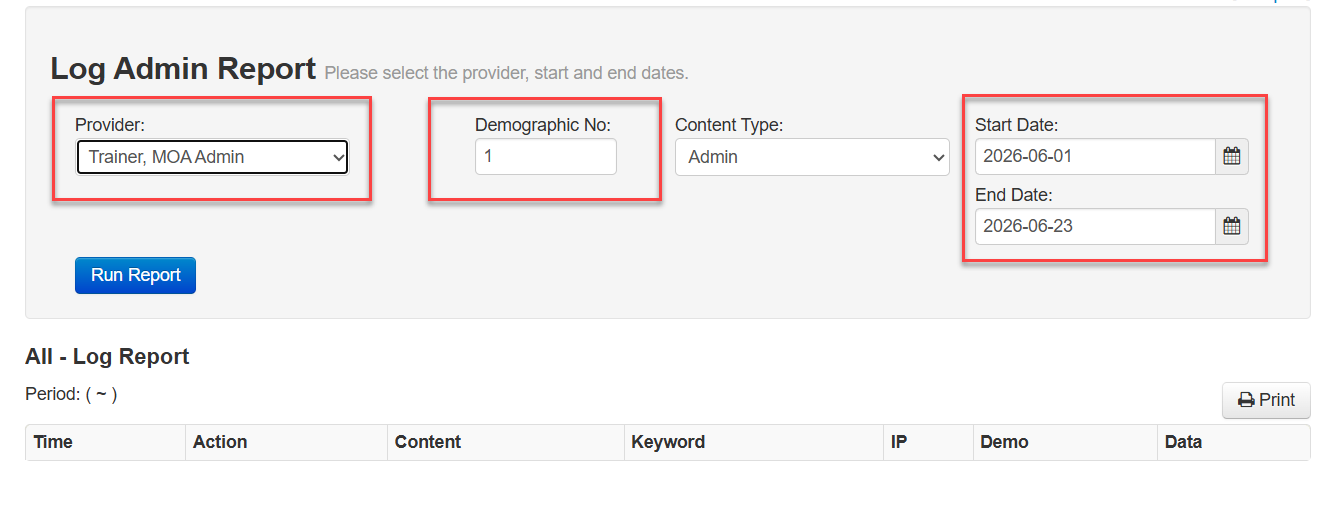
Demographic Number
Use the Demographic field to narrow results to a specific patient record. Enter or search for the patient to view security log activity related only to that individual, making it easier to investigate chart access or review activity for a particular patient.
Provider Selection
Use the Provider filter to limit results to activity performed by a specific user or provider. This is useful when reviewing user activity, investigating access concerns, or confirming actions completed by a particular staff member.
Date Filters
Use the Start Date and End Date filters to define the reporting period. Selecting a smaller date range can improve report performance and help focus on the relevant activity during a specific timeframe or investigation period.
Interpreting Report Results
The report displays activity recorded for the selected patient, provider, and date range, including:
- Time – The date and time the activity occurred.
- Action – The action performed, such as read, add, update, or system-generated events.
- Content – The OSCAR module or area where the activity occurred (e.g., demographic, eChart, appointment, bill).
- Keyword – Additional information related to the activity, such as the appointment number, record identifier or integration responsible for the action.
- IP Address – The IP address from which the activity originated.
- Provider – The user who performed the action.
- Demo – The demographic number associated with the patient record.
- Data – Additional details about the activity, such as appointment information, billing actions, or system URLs.
*Some items in the log report will be automatic system actions and not all will represent actions taken by a user
Common Use Cases
Review User Additions or Edits in Patient Charts
- Filter for the demographic number of the patient and relevant dates.
- Run the Security Log report,
- Review access events during the relevant date range.
- Identify "add", "delete", or "read" actions under the content "Demographic".
Confirming Chart Access by User
- Run the Security Log report.
- Select the appropriate user.
- Review access events during the relevant date range.
Identify view, edit, or update actions.
Investigating Suspicious Activity
If unusual activity is reported:
- Run the Security Log for the suspected period.
- Review user actions and IP addresses.
- Look for unexpected chart access or administrative changes.
- Escalate findings according to clinic privacy policies.