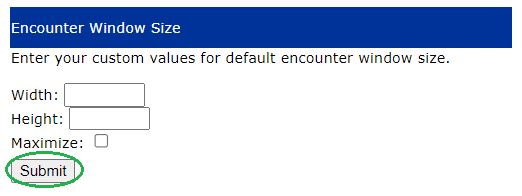
Users have the option to control the height and width of the eChart screen as it opens in OSCAR. They may also set the eChart window to 'maximize' and fit the entire screen automatically.
As a Preference, this setting affects only the current user and does not apply to all users automatically.
Please see step by step instructions below on how this can be done:
- On the OSCAR schedule, click Preferences (at the top)
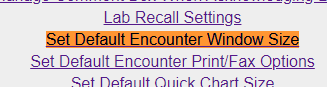
- Scroll down to the list of links and click the Set Default Encounter Window Size preference
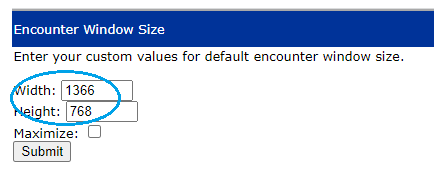
- To set a custom width and height for this screen, enter the desired values in the Width and Height fields (values are measured by pixels).
OR
To ensure the eChart window opens in full screen, select the 'Maximize' checkbox, leaving the Width and Height blank.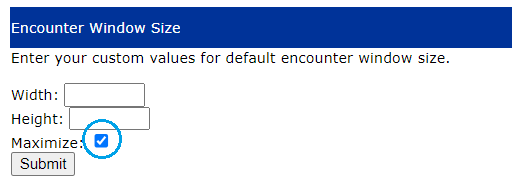
- Click Submit to save