This article addresses frequently asked questions related to the OCEAN platform and integration available in OSCAR PRO.
OCEAN is the leading digital gateway for healthcare providing an integrated solution to connect with your patients, providers and healthcare systems through the secure exchange of healthcare data. OCEAN delivers a powerful suite of tools designed to enhance and improve functionality in OSCAR PRO. Here's a brief list of OCEAN features that other OSCAR PRO users are taking advantage of:
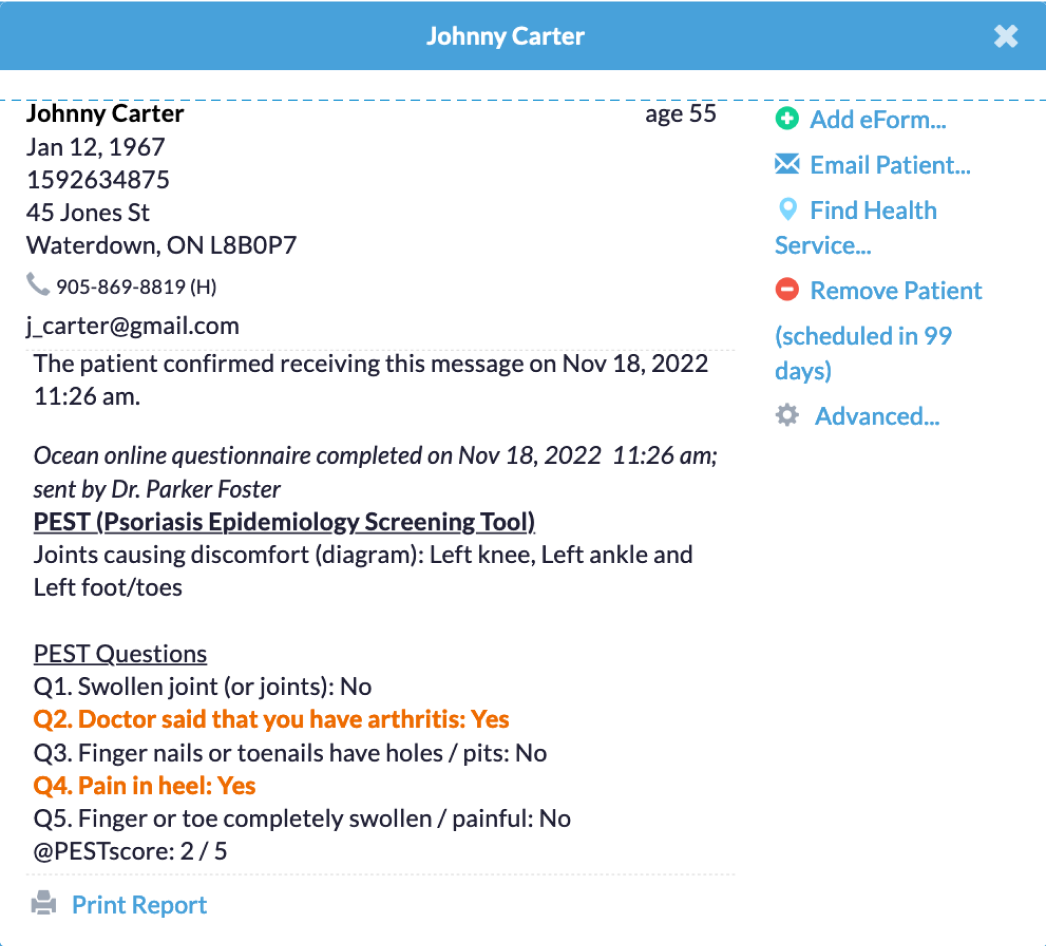
| Patient Messaging |
Provides a secure channel for clinics and practitioners to communicate with their patients. Messages are initiated by the clinic with the option to control the ability for a patient to reply. Attachments from the patients eChart can be added to securely share requisitions or other documentation as well as questionnaires and other OCEAN eForms for your patient which are then routed directly into the EMR upon completion.
|
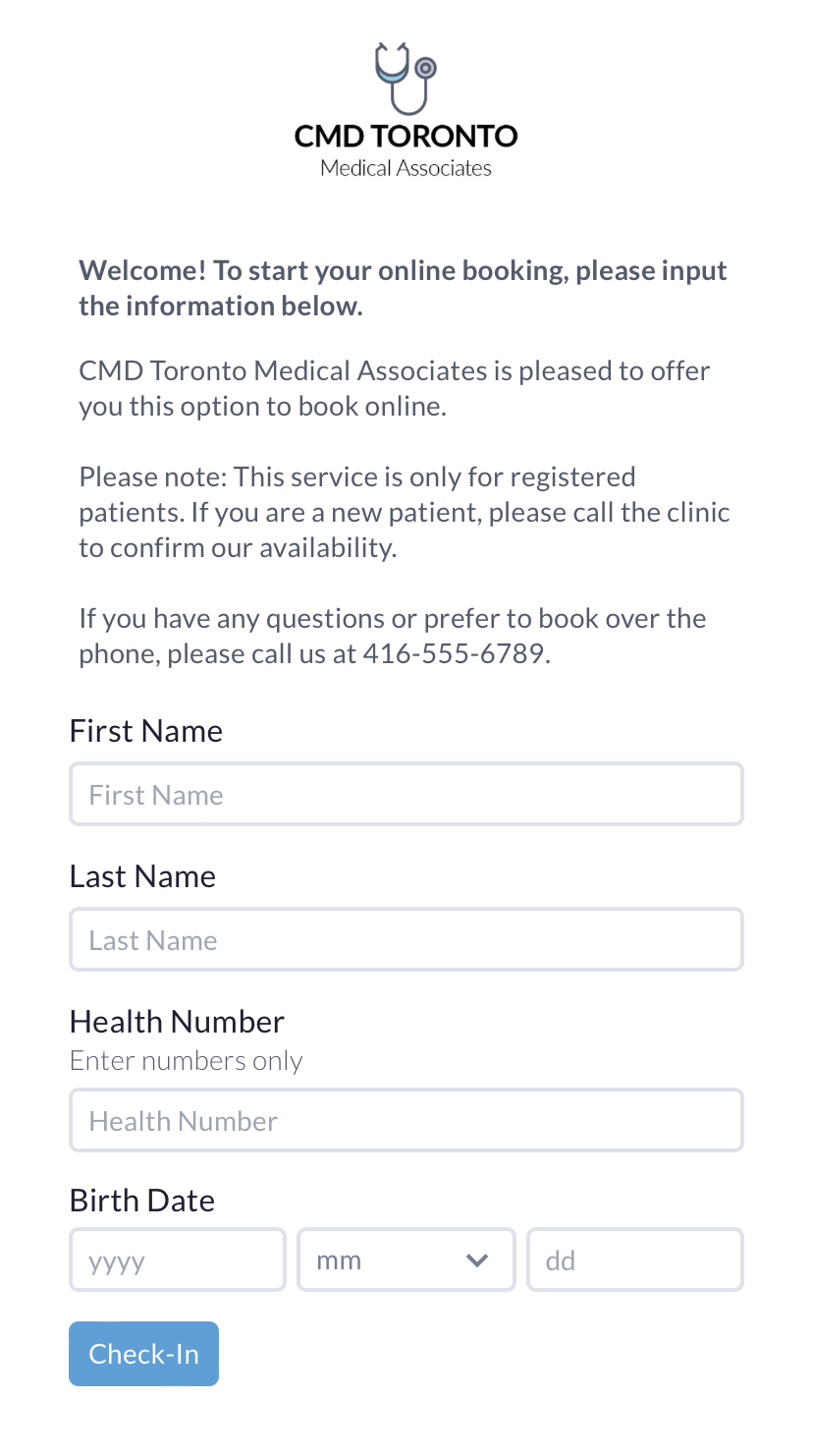
| Online Booking |
Integrating directly with your OSCAR PRO scheduler OCEAN's online booking tool provides practitioners complete control over what, when and who patients can book with. OCEAN's "friendly to use" design let's patients manage appointments without requiring an account or login and is accessible through any device.
|
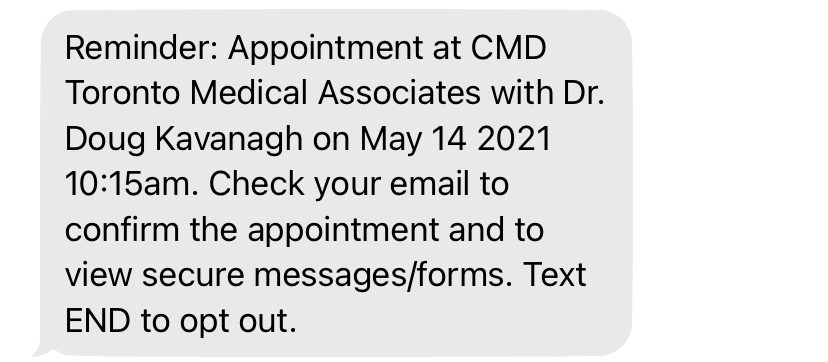
| Patient Reminders |
A customizeable and friendly solution to notify your patients and help them arrive prepared for each visit. Reminders can be sent via email, SMS text or both; however, charges will incur for SMS text messaging. Multiple reminder rules can be created with specific message templates to adhere to specific appointment types in OSCAR PRO. OCEAN Forms can also be included in reminders for clinics to capture important details prior to each visit freeing up staff time.
|
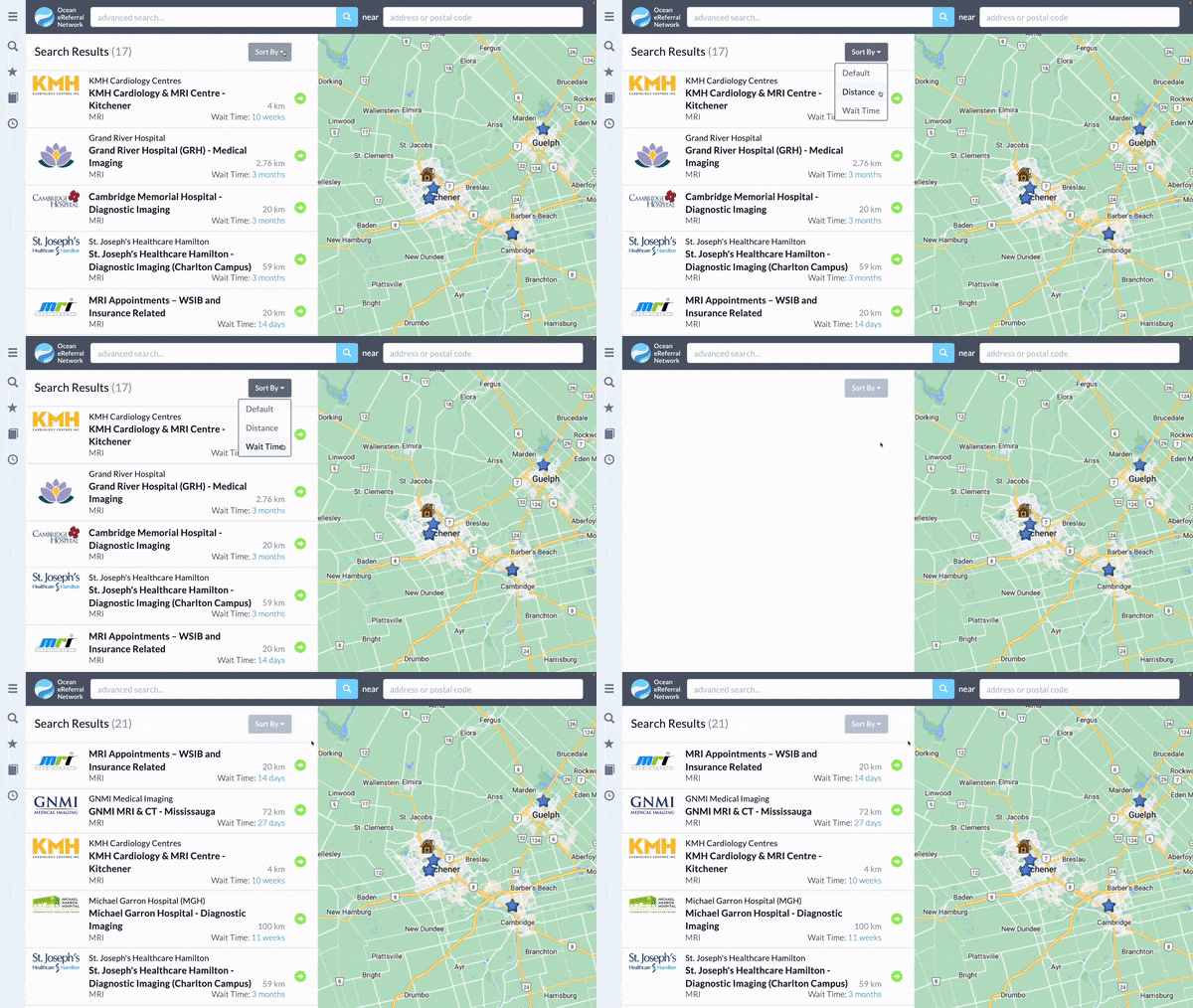
| OCEAN Provider Network: eReferrals |
A powerful platform reducing administrative workload and improving patient wait times. Helping you connect your patients to healthcare services, send and receive eRequests and track their statuses without needing to fax. This also includes a map-based directory simplifying searching and a visual for where you're connecting patients to, empowering providers to make more informed care decisions.
|
If you would like to request a demo of OCEAN please click on this link:
Please visit this link to find out more:
https://www.oceanmd.com/pricing/
Here is the link to begin registration for an OCEAN account:
Click on the following link:
https://support.cognisantmd.com/hc/en-us/sections/115000155332
In step 2 select OSCAR PRO 'photo' and follow steps 1-5. Alternatively you may reach out to your OCEAN representative for assistance.
In a patient's eChart you'll find the OCEAN toolbar in the center above the Toilet Roll. Click the down arrow to expand the tool bar.
Alternatively you can setup a quick link ICON on patient appointments
To do this you'll need to set this up via Preferences
Note: Preferences are individual login changes, ensure all users perform the same changes.
Navigate to eForms to display on appointment screen and select the checkbox for the OCEAN labeled eForm.
Lastly select the update button to save your changes.
You may visit the link below to submit a ticket to OCEAN:
https://cognisantmd.freshdesk.com/support/tickets/new
An OCEAN support agent will reach out to further assist you.